

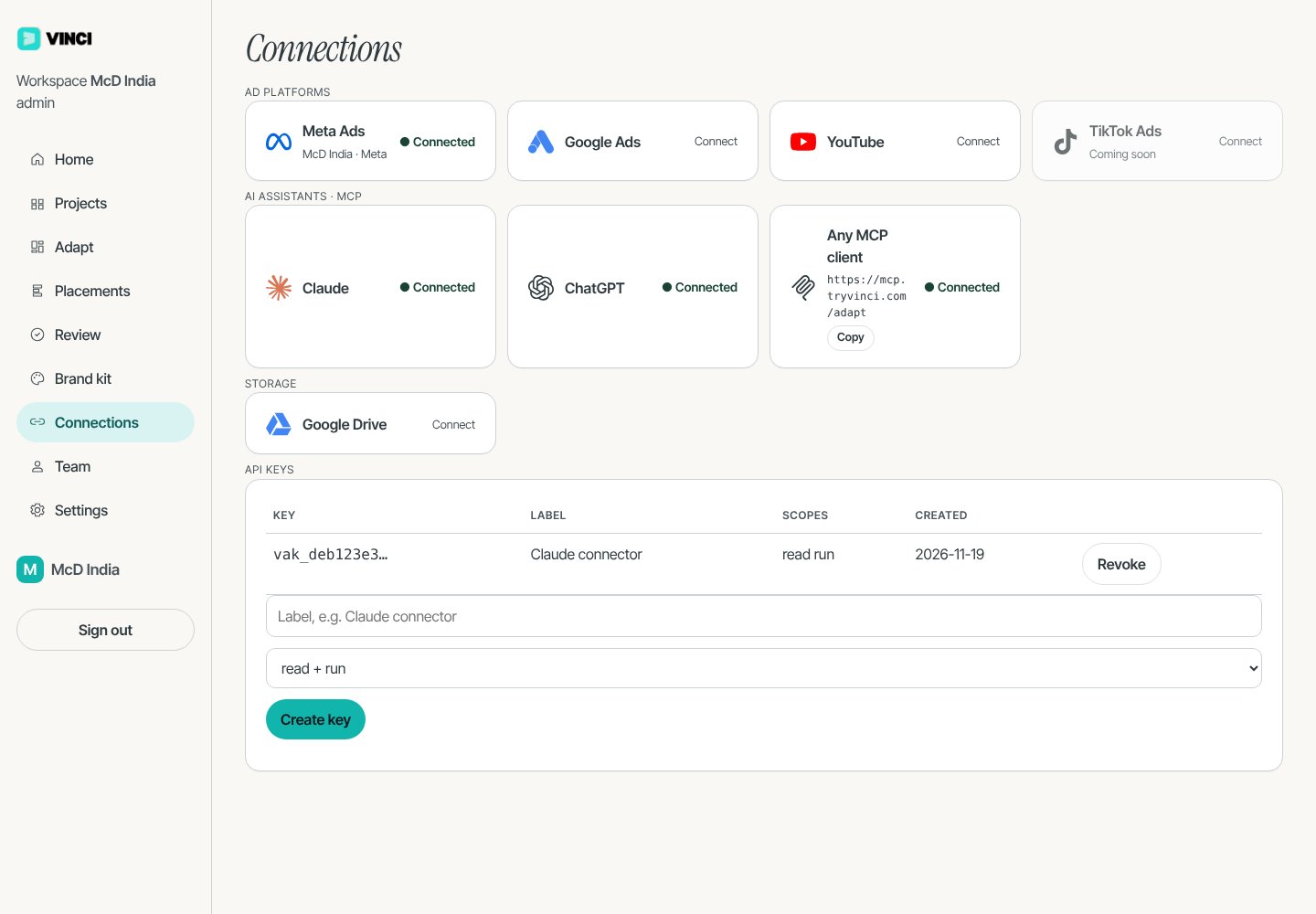
Platforms
Connect a platform
1
Open Connections
Go to Connections in Adapt. Only workspace admins can add or remove connections.
2
Add the account
Choose the platform and sign in with an account that can upload to the ad account or folder you want.
3
Push a batch
On a finished batch, choose Send and pick the connection. Confirm the push.
How pushes behave
- Every push asks you to confirm first.
- Pushes are safe to retry: sending the same batch twice does not upload duplicates.
- Access tokens are encrypted at rest and are never shown again after you connect.
- Removing a connection stops future pushes; files already sent stay in the platform.